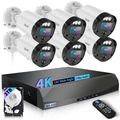
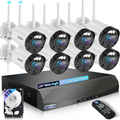
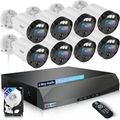
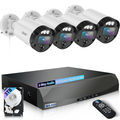
You didn’t buy a home security camera system just to let it sit there and look pretty. You bought it so you could actually see what’s going on—whether you’re in the backyard, at the office, or on vacation. And the only way that really works is if you can pull up that live feed right on your phone.
The good news? It’s way easier than most people think.
Most modern battery-powered security cameras are built to work with a free smartphone app, and honestly, that’s the game-changer. Once you set it up, you’re not just getting a camera—you’re getting a full remote monitoring system that sends you alerts, lets you talk through it, and keeps an eye on your property 24/7.
Let’s walk through exactly how to get your home security camera system connected, what to look for when choosing one, and why the right setup makes all the difference.
How to Connect Your Security Camera to Your Phone (Step-by-Step)
If you’ve been putting this off because you think it’s too technical, stop. The whole process usually takes about 10 minutes.
Here’s the basic flow, and trust me, it works the same way across most major brands.
Step 1: Download the Right App
Every manufacturer has their own app. That’s the one you need—not some generic third-party viewer. Go to the Apple App Store or Google Play, search for your camera brand’s official app, and download it.
For example, if you’re using a WEILAILIFE camera, you’ll grab the official WEILAILIFE app. Simple enough.
Step 2: Power Up and Prep
Your camera needs to be powered on and in “pairing mode.” Usually, this means plugging it in or inserting the battery, then waiting for the indicator light to start blinking—that tells you it’s ready to connect.
Step 3: Add the Device in the App
Open the app, create an account (or log in), and tap the “+” or “Add Device” option. You’ll typically have two ways to connect:
-
Scan a QR code – Most cameras have a code right on the unit or in the manual. Just point your phone at it and the app does the rest.
-
Enter the UID manually – If the QR scan doesn’t work, you can type in the device’s unique ID number.
Step 4: Connect to Your Wi-Fi
The app will ask you to pick your home Wi-Fi network and enter the password. Once the camera gets that info, it’ll join your network and you’re basically done.
Step 5: Start Watching
After a quick sync, your camera will show up in the app. Tap it, and bam—you’re watching live video from your phone, wherever you are.
That’s really all there is to it. But here’s where it gets interesting: not all battery cameras are created equal.
What to Look For in a Battery-Powered Security Camera with App Access
If you’re shopping around, don’t just grab the cheapest one you see. There are a few things that separate a solid home security camera system from one that’s going to frustrate you six months down the road.
The App Should Be Free and Easy to Use
Some brands try to nickel-and-dime you with paid apps or third-party software that doesn’t even support all the camera features. That’s a headache you don’t need.
A good app should be intuitive—you shouldn’t have to dig through menus to find basic settings like motion detection zones or sensitivity. And it should support both iOS and Android, especially if multiple people in your household need access.
Battery Life Matters (But So Does How You Use It)
Here’s the thing: manufacturers love to throw out big battery life numbers, but your mileage will vary. A lot depends on how often the camera records, how much motion it detects, and how many people are viewing the feed at once.
That’s why it helps to have a camera that actually shows you the battery status in the app and sends a low-battery alert before it dies. That way, you’re not caught off guard.
Local Storage vs. Cloud
Battery-powered cameras usually record only when motion is triggered to save power. Most will let you pop in a microSD card for local storage, so you can go back and review footage right from the app without paying for a monthly cloud subscription.
Can You Share Access?
If you want your spouse, roommate, or a family member to also check the feed, the app should make that easy. A solid system lets multiple users log in and view simultaneously.
The Smart Choice: WEILAILIFE Battery-Powered Security Cameras
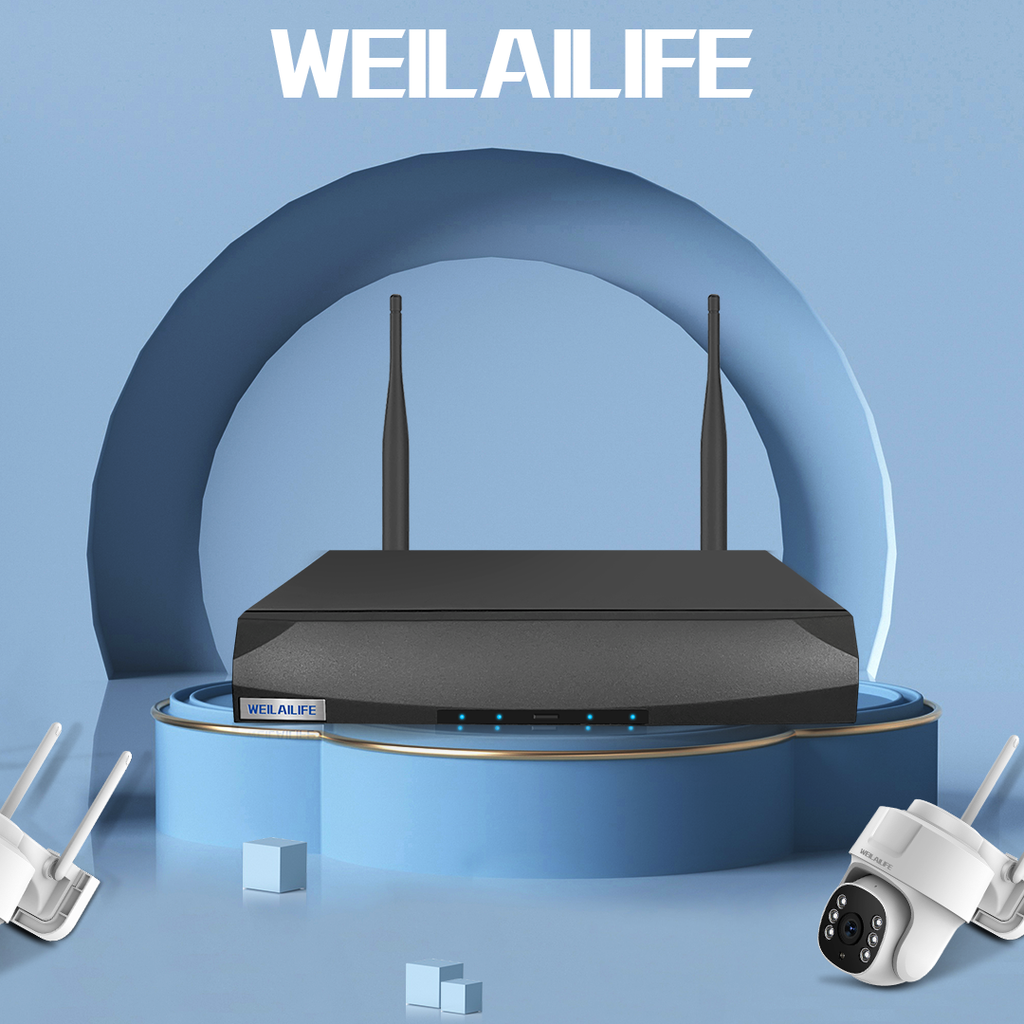
If you’re looking for a reliable setup that checks all these boxes, WEILAILIFE makes the whole process incredibly smooth.
Their wire-free cameras are designed to be installed anywhere—no drilling, no messy cables, no professional help required. And once you download the app, connecting your camera to your phone is about as straightforward as it gets.
The WEILAILIFE app gives you access to all the features you actually care about:
-
Live HD video from anywhere
-
Instant motion alerts straight to your phone
-
Two-way audio so you can talk or listen
-
Battery status updates so you always know when to recharge
You get full control of your home security camera system right from your palm, without complicated setups or hidden fees.
What If You Don’t Have Wi-Fi or Internet?
This is a question that comes up a lot, and the answer depends on your specific camera.
Most battery-powered WiFi cameras do require an internet connection for remote viewing. If you’re away from home, you need Wi-Fi to stream the video and get alerts. However, many models—including WEILAILIFE cameras—can still record motion-triggered footage locally to an SD card even without internet access.
That said, if you need a camera in a remote location with no Wi-Fi (a barn, a construction site, a vacation cabin), you’d want a 4G cellular model that runs on mobile data instead.
FAQs About Connecting Security Cameras to Your Phone
Will my camera work with both iPhone and Android?
Yes—as long as you choose a brand that supports both. WEILAILIFE, for example, offers full compatibility with both systems.
Can multiple people watch the same camera at the same time?
Absolutely. Most modern systems allow multiple users to view the feed simultaneously, though keep in mind that more viewers can drain the battery faster.
Is it safe? Will my video feed get hacked?
Security depends on the brand. Reputable manufacturers use encryption like SSL/TLS and WPA2-AES to protect your data. Always stick with a trusted brand, update your passwords, and keep your app up to date.
Final Thoughts
Getting your home security camera system connected to your phone isn’t just a nice-to-have—it’s how these cameras are meant to work. That instant access to live video, real-time alerts, and the ability to check in from anywhere is what turns a basic camera into a real security tool.
With brands like WEILAILIFE, the setup is simple, the app is solid, and the peace of mind is worth it.